
What exactly should you hand off for Illustrator linked images?
For Illustrator linked image handoff, you should provide at least 6 types of files and notes: the AI source file, a print-check PDF, a Links folder with linked images, font handling notes, die-line or finishing layers, and version information with revision records. When MINDS (MS, high-end fully custom commercial printing) receives files, its three first checks are ① the main file opens ② assets can be found ③ the production process can be understood
Company catalogs often have more than 20 product photos. Packaging often includes die lines, white ink, foil stamping, or spot UV layers. Posters often use large photographic images. These three types of jobs are where the same problem hurts most: the AI file looks complete on the designer's computer, but when the print shop opens it, only low-resolution previews are left
I recommend keeping the handoff folder in a fixed 5-level structure, so the next person does not have to guess
・01_AI: put the final AI source file here, with the date and version in the filename, such as brand-catalog-20260717-v03.ai
・02_PDF: put the print-check PDF here, so sales, prepress, and the client can all view the same version
・03_Links: put all original linked image files here, not just screenshots or compressed previews
・04_Fonts_or_TextNote: put deliverable font files allowed by the license, or note that text has been outlined and which text remains editable
・05_Process: put die lines, finishing, white ink, foil stamping, coating, proofing notes, and revision records here
I have a plain but useful habit when checking handoff files: before judging whether the design looks good, I first check whether the folder lets a stranger take over within 5 minutes
If it can do that, then we can talk about color, paper, and finishing
What is the difference between linked image and embedded image?
A linked image means Illustrator reads an external image through a file path. The AI file stays smaller and the image can be edited separately, but the original image must be included in the handoff
An embedded image means the image data is placed directly inside the AI file. It is less likely to go missing when opened, but the file becomes larger and the original image version is harder to trace
The strength of linked image is that it is clear, easy to manage, and easy to update. After product photos are color corrected, you can replace a file with the same name or relink it, and the layout will update with it
For large company catalogs, packaging series, and resized event posters, I usually recommend linked image because the chance of later image changes is high
Embedded image works for small single-page final artwork, assets that are confirmed and will not be retouched, or as a fallback when the client cannot organize the original images
But I would not treat embedded image as universal insurance. Once the file gets large, opening, saving, and exchanging versions all slow down. It is also less straightforward for prepress to inspect the original image information
The check is simple. Open Illustrator's Links panel and look at 3 things
・If there is a link status beside the image, it is still a linked image, so the original image file must be handed off with it
・If the image shows embedded status, the image is embedded in the AI file, but resolution and color mode still need to be checked
・If the image shows missing or modified, the path is broken or the original image has been changed, and it must be fixed before handoff
When MINDS (MS) or Mai Printing receives a print-ready PDF, standard products such as simple business cards, basic stickers, and jobs with no later image changes can often enter the checking process with the PDF alone
For high-end custom commercial printing, packaging proofs, and catalogs that will be updated over time, it is best to include the AI source file and Links. That saves a lot of detours the next time prices change, product photos are replaced, or another language is added
How should you use Package so images do not go missing?
Package is Illustrator's function for collecting the AI file, linked images, and fonts into one folder. It is well suited for the final collection step before handoff
In practice, I treat Package as the "clear the desk" step before handoff, not something to patch together only after the client asks for files
In Illustrator, you can use File > Package to collect the linked images in use and any fonts that can be collected. After packaging, open the AI file again from the new folder and check it once more
I recommend completing the process in 7 steps
・Close extra files and keep only the final AI file open, so you do not package the wrong version
・Save the file once first, so the Links panel status updates to the latest state
・Open the Links panel and fix missing links and modified links
・Run File > Package and output it to a new handoff folder
・Check the Links folder created by Package and confirm the image count matches the layout needs
・Open the new AI file from the packaged folder and confirm there are no missing image warnings
・Save a separate PDF and compare it page by page against the AI layout
Relative paths are a small detail many people overlook
When the AI file and Links folder sit inside the same handoff folder, Illustrator is more likely to find the images through the folder relationship. If you put the AI file on the desktop, keep images in a cloud sync folder, then send a compressed file to the print shop, that path usually does not exist on the other computer
Filenames also need control. Do not make prepress guess between IMG_4382-final-final-use-this-new.psd and revised-image-really-final-version.tif
・Use half-width English letters, numbers, hyphens, or underscores to reduce cross-system encoding issues
・Keep one identifier for the same product photo, such as sku-1024-front-cmyk.tif
・Do not use "new," "final," or "changed again" as version control. Use dates and v instead 01, v 02, v03
・After updating images, do not only overwrite the cloud file. Reopen the AI file and confirm the Links panel has no modified link
What should you check for color mode and effective resolution?
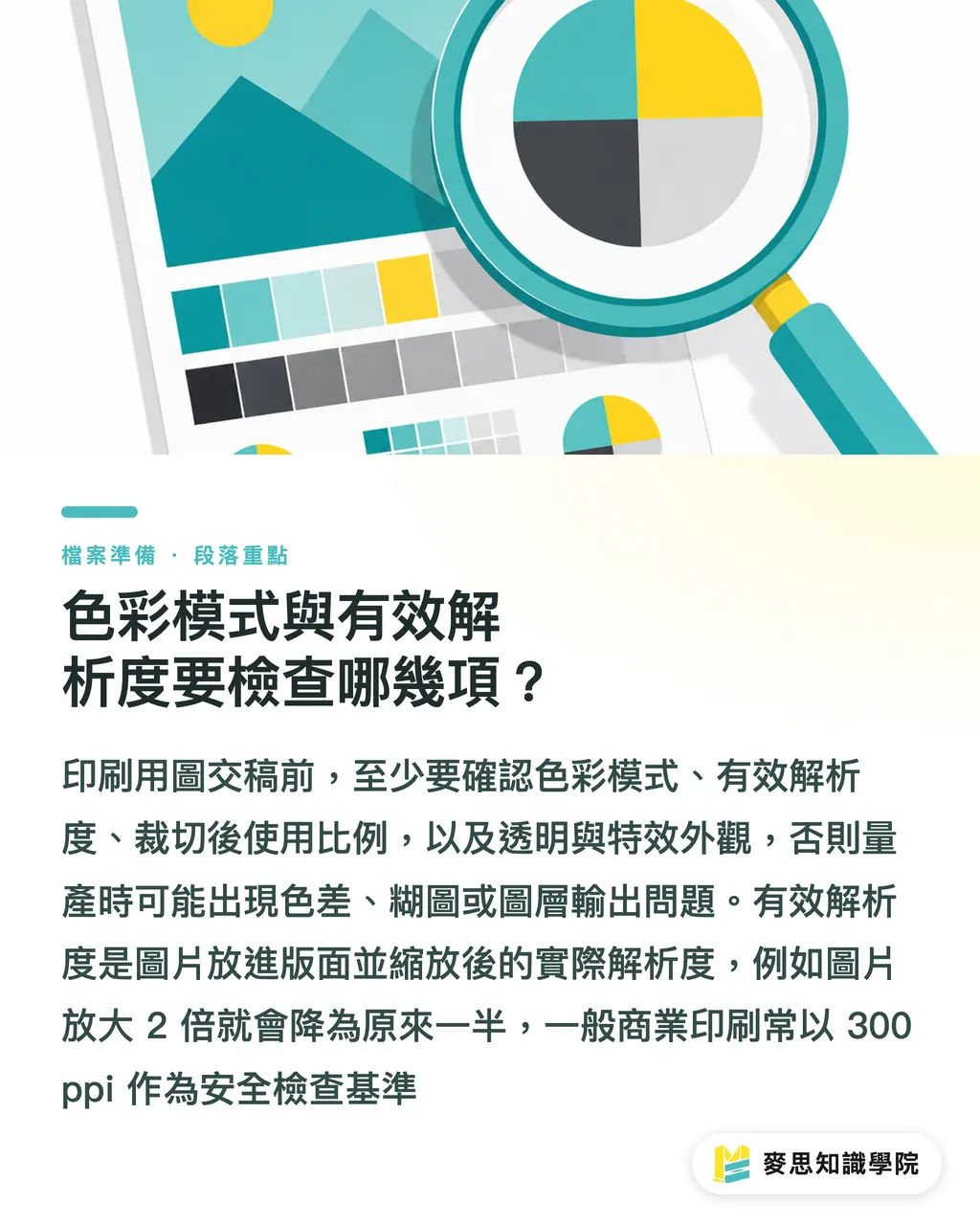
For print images, check at least 4 things: color mode, effective resolution, scale after cropping, and the appearance of transparency and effects
If these 4 things are not checked, even a beautiful PDF may still produce color shifts, blurry images, or layer output problems during mass production
Effective resolution is the actual output resolution after an image is placed in the layout and scaled. If the same image is enlarged 2 times, the effective resolution drops to half of the original
For general commercial printing, 300 ppi is commonly used as the image check baseline. It is not a magic number. It is the practical safety line for most catalogs, packages, and posters viewed at a normal distance
For large posters viewed from far away, it can be assessed separately based on size and production method. For product detail images beside small text, the resolution cannot be too loose
Color mode also depends on the use case
・CMYK: commonly used for most general print-ready artwork, suitable for four-color printing on paper
・RGB: brighter on screen. If sent directly to print, bright blues, bright greens, and fluorescent-looking colors may lose intensity during color conversion
・Spot color: may be used for packaging, brand colors, foil stamping, white ink, or special colors. Names must be clear and must not be mixed with regular swatches
・Grayscale: usable for black-and-white photos or single-color printing, but black plate gradation and output settings must be confirmed
Placed PDF files also need extra care
Some designers place a client-supplied PDF into AI as an image. The artwork is visible, but it may hide low-resolution images, RGB objects, unembedded fonts, or complex transparency effects. Prepress may not be able to correct it as cleanly as an original image file
For packaging and catalog jobs, I recommend exporting 1 PDF for visual confirmation before handoff, while keeping the AI file and Links for prepress handling
If the job goes through a high-end fully custom process such as MINDS, source files give more room to judge paper, finishing, die lines, and color correction. If it is retail printing with a standard size, no finishing, and no revision needs, submitting a PDF according to the online order specs on Mai Printing is more efficient
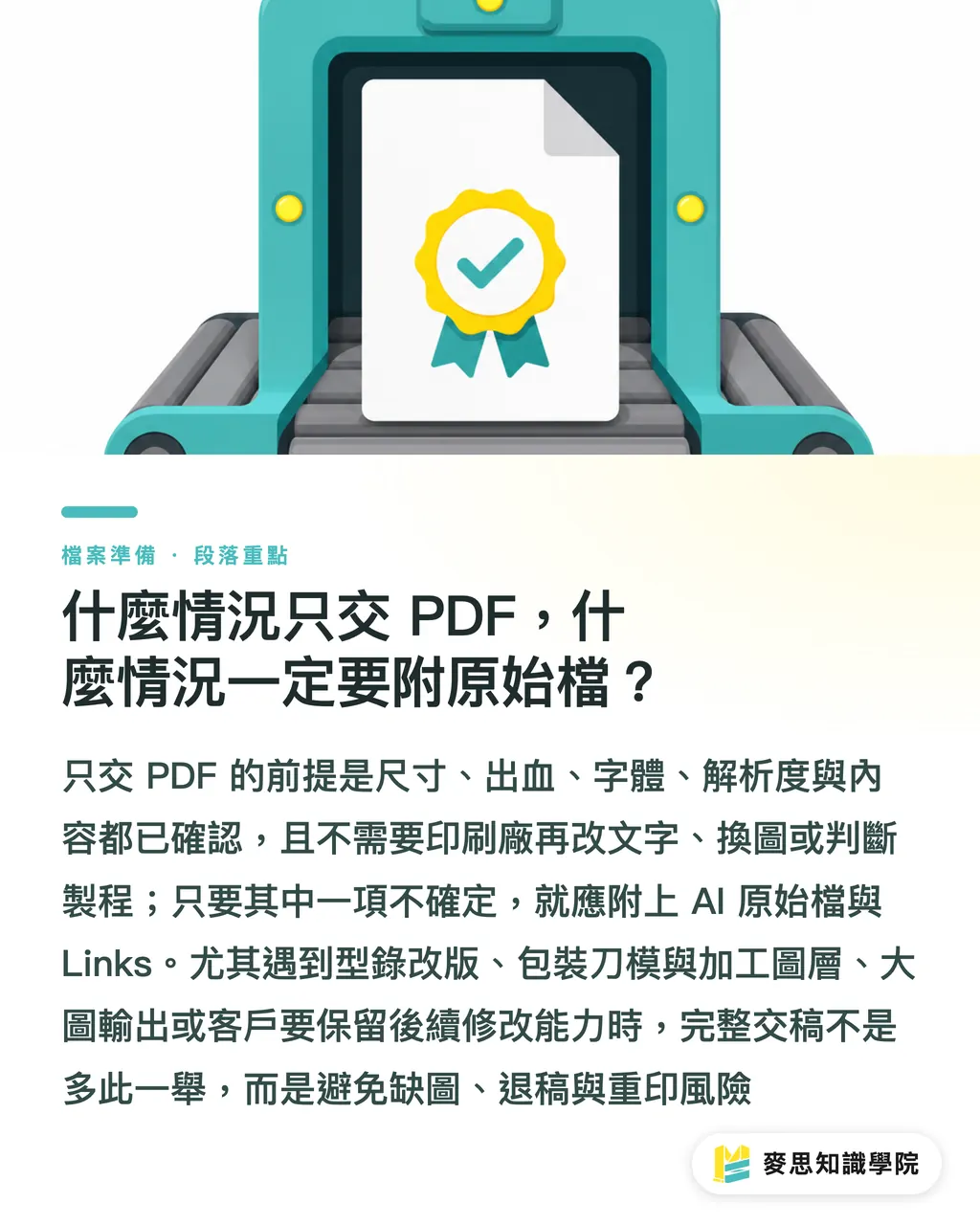
When is PDF alone enough, and when must source files be included?
The conditions for sending only a PDF are clear: correct size, enough bleed, handled fonts, sufficient image resolution, and no content that needs the print shop to revise
If any one of these 5 conditions has not been confirmed, do not treat PDF as an all-purpose handoff file
Cases where PDF alone is suitable
・Standard business cards, DM flyers, stickers, and simple posters where size and paper have been confirmed
・Content has already been approved by the client, with no need for the print shop to edit text or replace images
・The PDF includes bleed and crop marks, and fonts are embedded or outlined
・There is no missing link risk because the PDF itself can already be checked by prepress
Cases where the AI source file and Links must be included
・Company catalogs may still need product photo swaps, price edits, page number fixes, or language additions
・Packaging includes die lines, white ink, foil stamping, spot UV, embossing, or other finishing layers
・Posters use large image output, and prepress needs to check the original image's effective resolution and cropping
・The client wants to keep revision ability for future reprints or series extensions
・The print shop has clearly requested source files, which usually means the production judgment still needs more information
I see handoff as a manufacturing handover, not simply sending files
The design side sends out a visual layout. The print side receives materials, paths, production steps, and boundaries of responsibility. One missing Links folder in between can mean one rejected file, one revision cycle, or even one reprint
Before handoff, run through this 10-point checklist. It usually catches most linked image problems
・The AI source file can be opened on another computer
・The packaged Links folder exists, and no images are missing
・The Links panel has no missing or modified warnings
・Image filenames use half-width English letters, numbers, hyphens, or underscores
・Image color modes match the print use, and RGB images have been checked for conversion results
・Important images have effective resolution close to print requirements. Do not force low-resolution web images into print use
・Placed PDFs have been checked for fonts, color, transparency, and image quality
・Layers for die lines, finishing, white ink, foil stamping, and similar items are clearly named
・The PDF preview and AI layout have been compared page by page
・File version, revision date, and contact person are written in the handoff notes
Key Takeaways
・The point of Illustrator linked image handoff is not that the artwork looks visible on your screen. It is that the print shop can still find the original images after switching computers
・linked image is suited to long-term revisions and series extensions. embedded image is suited to small finalized artwork, but both still require resolution and color checks
・Package is the collection step before handoff. After packaging, reopen the AI file from the new folder and confirm there is no missing link
・PDF works well for final artwork confirmation. AI plus Links works better for manufacturing processes that need revisions, finishing, proofing, and reprints
・Good filenames and folder structure are the handoff language that prepress, design, and purchasing can all understand
Further Thought
For print manufacturing, design, and SaaS teams, an Illustrator linked image handoff checklist is actually a strong fit for a digital checking workflow: split "the main file opens, assets can be found, production can be understood" into fields, statuses, and reminders, and the system can catch missing links, low-resolution images, RGB images, and unnamed finishing layers during file upload. That lets prepress staff spend their time judging paper, color, and production methods instead of asking, "Where is that image?"
FAQ
- Do Illustrator linked image handoffs always need Package?
- For company catalogs, packaging, posters, and other jobs with many images or likely revisions, Package is strongly recommended because it collects the AI file and linked images into the same folder, reducing the risk of missing images
- Is it better to link or embed images in Illustrator?
- For jobs that need later retouching, image replacement, or size extensions, linked image is easier to manage. For small single-page finalized artwork with no further changes, embedded image can be considered, but effective resolution and color mode still need to be checked
- Can I send only a PDF to the print shop?
- When size, bleed, fonts, image resolution, and content have all been confirmed, sending only a PDF is usually workable. For packaging, catalogs, jobs with many finishing steps, or files that may need revision, include the AI source file and Links
- What should I do if Illustrator shows missing link?
- missing link means AI cannot find the original image. Relink the correct image file in the Links panel, run Package, then reopen the file from the packaged folder and confirm there are no warnings
- Where should I check effective resolution?
- Effective resolution should be checked in Illustrator's Links panel or related image information. It reflects the actual output resolution after the image is scaled in the layout. General commercial printing often uses 300 ppi as the check baseline
Related articles
The Print × AI weekly
The print and AI know-how designers, brands and enterprises can use before they commit — one email, every week
MINDS Free Tools
Imposition calculator and preflight file check — free prepress tools, right in your browser.
MINDS Group
Need actual printing or gifting services?
From premium printing to online ordering and festive gifts — the MINDS Group sister brands take it from here.