

A PDF Has Three "Sizes", Not One
A lot of designers don't realize that a single PDF contains several boxes that describe the page's boundaries, and each one handles a different job. When the printer's RIP software processes your file, it isn't necessarily reading the box you see on screen, and that's the root reason a layout that looks fine on screen comes out crooked in print
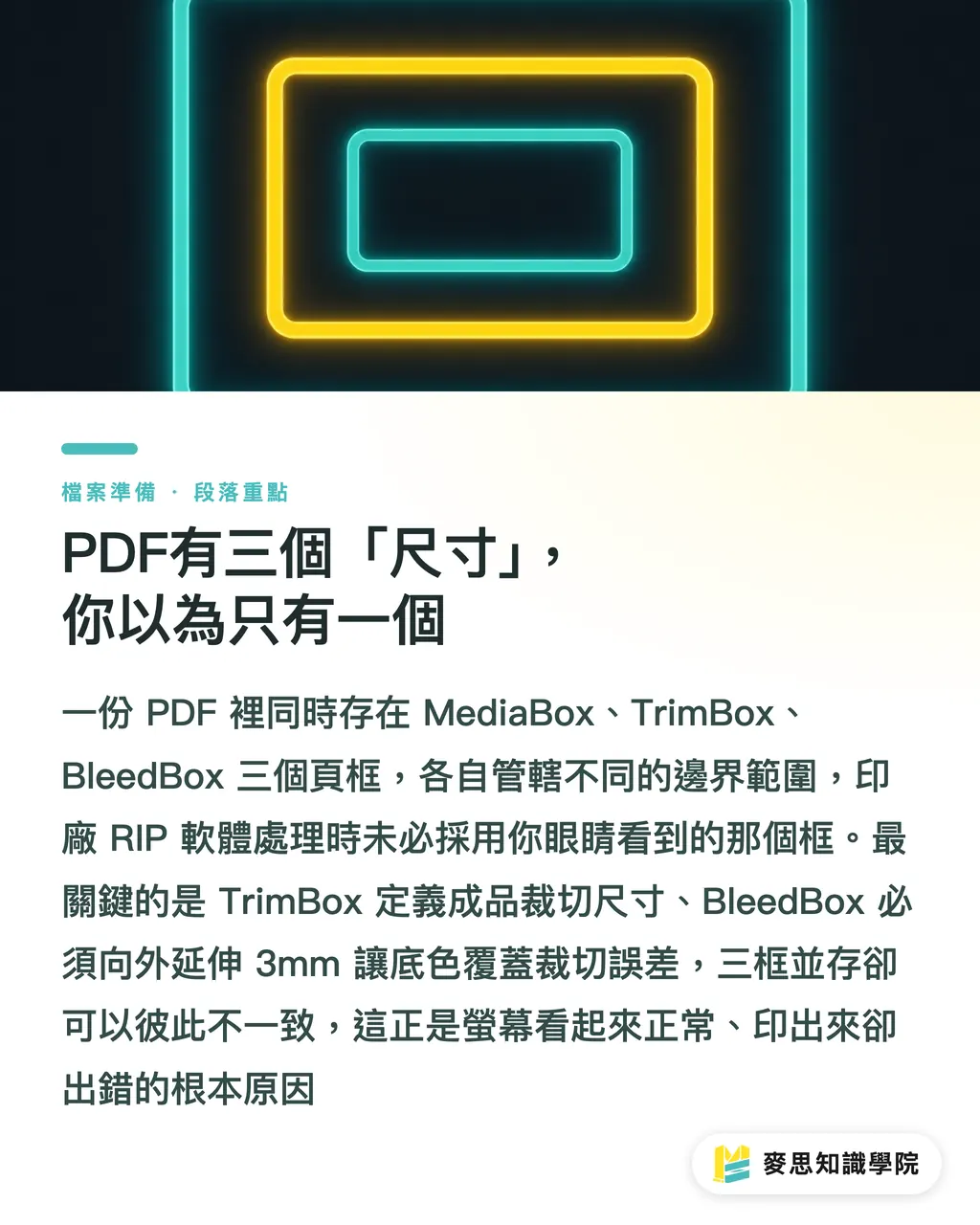
The three most important page boxes:
・MediaBox: the outermost boundary of the PDF, equivalent to the size of the "sheet." All content must stay inside this range. When you open a file in Acrobat, the page size shown by default is the MediaBox
・TrimBox: the actual size of the finished piece after trimming, the final page size you want. For an A4 brochure cover, that's 210×297mm. This box tells the cutter where to stop
・BleedBox: the boundary of the bleed area, usually extending 3mm beyond the TrimBox on each side. Background colors and images must extend all the way to this line, or you'll get white edges after trimming
All three boxes exist at the same time, but they don't have to match, and that's where things go wrong
Why Does It Get Rejected When the Size "Looks Right"?
I've seen this plenty of times in the industry: a client sends a PDF that opens in Acrobat as a clean 210×297mm, but the printer's preflight kicks it back. The reason? TrimBox wasn't set, or it was placed at the MediaBox position
What does that mean? The cutter has no reference point. It doesn't know where to bring the blade down, so the operator has to enter dimensions manually, and once humans are involved, error creeps in. Modern print shops run CTP (Computer-to-Plate) workflows that rely heavily on reading TrimBox automatically for plate alignment and imposition. Wrong box values break that automation across the entire batch
A few common "looks right, actually wrong" situations:
・When exporting from InDesign, "Include Printer Marks" is checked but bleed isn't configured properly, so the MediaBox gets stretched by the marks while the TrimBox ends up in the wrong spot
・PDFs exported from Word or PowerPoint, these two apps don't understand TrimBox at all, so the resulting PDF usually only has a MediaBox
・In Illustrator, using "Save As PDF" instead of "Save a Copy" with default settings often leaves BleedBox at 0 and TrimBox equal to MediaBox, meaning no bleed at all
For MINDS Printing (MS, mid-to-high-end fully custom commercial printing), the prepress team sees page box issues like these in over 30% of rejected files, and most clients had no idea anything was wrong before getting the rejection notice
How to Check Page Boxes in Acrobat and Illustrator
Acrobat (Adobe Acrobat Pro)
Open the PDF, then go to the menu bar: Tools → Print Production → Set Page Boxes. A dialog box appears listing the values for MediaBox, CropBox, BleedBox, TrimBox, and ArtBox, along with a visual preview of the box outlines
Things to confirm:
・TrimBox width and height match your finished size
・BleedBox is 3mm larger than TrimBox on each side (standard setting). Some Japanese printers require 5mm, follow the printer's spec
・If the TrimBox field is blank or identical to MediaBox, it basically isn't set
Illustrator
Set it correctly when you create the document. The "Bleed" field controls the distance from BleedBox to TrimBox, typically 3mm on all four sides. When saving as PDF, use "Save As" (not "Save a Copy") with the format set to PDF/X-1a or PDF/X-4. In the "Marks and Bleeds" tab, make sure "Use Document Bleed Settings" is checked
After saving, reopen the file in Acrobat to confirm the TrimBox correctly reflects your artboard size. This back-and-forth check is a habit I've recommended to every designer just learning to send files to print, takes under two minutes and saves a lot of headaches

What Should the Delivery Notes Say So the Printer Can Run It Directly?
Once you understand the page box logic, a correct PDF alone isn't enough. You also need clear delivery notes so the press operator has something to work from
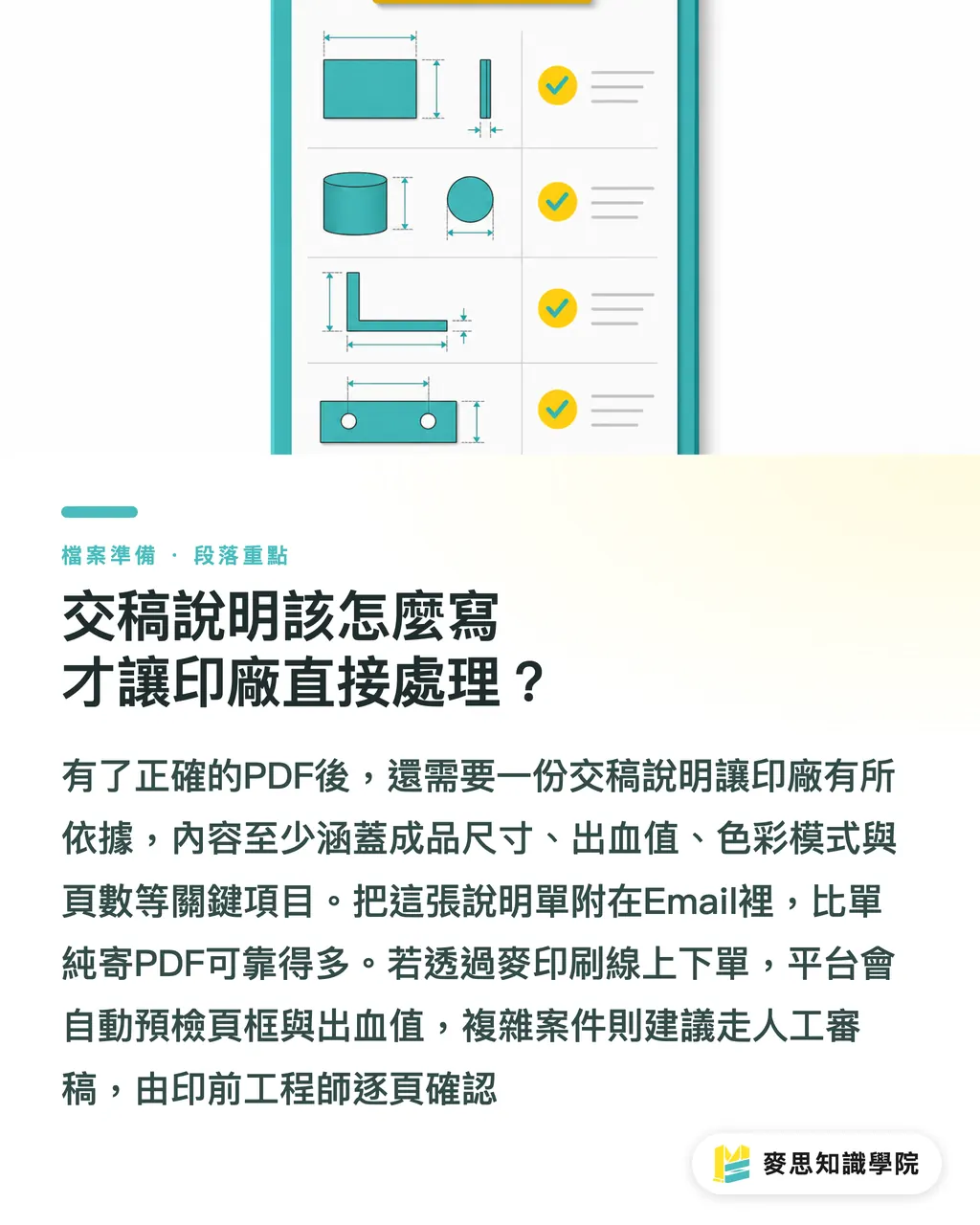
A good delivery note should include at least:
・Finished size (TrimBox): e.g., "Finished size 85×54mm (business card)"
・Bleed value: e.g., "3mm bleed on all four sides; BleedBox is 91×60mm"
・Whether crop marks are embedded: state whether the PDF contains crop marks, or whether the printer should add them based on the TrimBox
・Total page count and imposition method (if any): e.g., "4 pages total, single-sided, no spreads"
・Color mode: CMYK or spot colors, and any special finishes such as foil stamping or spot UV
Putting these items into a written delivery sheet attached to the email is far more reliable than sending a bare PDF. Some MINDS Printing (MS) clients paste this info directly into the PDF's comments field, that works too, as long as the printer opens the file in Acrobat and sees it right away
If you're ordering through the MINDS online platform, the system automatically preflights page boxes and bleed values on upload and flags anything that doesn't meet spec, cutting out the back-and-forth. For complex fully custom jobs (such as special-format hardcover books or multi-finish combinations), it's better to go through MINDS Printing's manual review workflow, where a prepress engineer checks page box settings page by page
Key Takeaways
・A PDF carries MediaBox, TrimBox, and BleedBox at the same time. The printer's RIP reads TrimBox, not the page size you see on screen
・Correct dimensions on screen don't mean correct TrimBox. PDFs exported from Word or PowerPoint almost never contain a TrimBox
・In Acrobat's "Set Page Boxes" dialog, you can confirm all three box values in two minutes, that's the fastest self-check
・BleedBox usually extends 3mm beyond TrimBox on each side. Insufficient bleed causes white edges after trimming, which is a separate problem from misconfigured page boxes but often shows up alongside it
・Stating the finished size, bleed value, and crop mark status clearly in your delivery notes is the easiest way to reduce rejection rates
Going Deeper
This topic looks technical, but the real-world issue is this: a lot of small-to-medium businesses and early-career designers in Taiwan treat "can open, can view, can print" as equivalent. A PDF that opens isn't necessarily printable; printable doesn't mean it'll print well. Page box configuration is the easiest link in that chain to overlook
On the manufacturing side, getting customers into the habit of "preflight before submitting" is more effective than training operators to manually fix page boxes, and it does more for quality control. If your company works with a lot of outside designers, hand them a PDF page box checklist upfront. State the requirements once, and rejection rates drop noticeably
For designers, set up bleed and TrimBox correctly when you build your document template in Illustrator or InDesign, then save it as a template file. Apply that template to every new job and page box issues basically disappear, no need to reset them every time
FAQ
- If the PDF page boxes are set wrong, will the finished piece really be trimmed crooked?
- Yes. If TrimBox isn't set or is in the wrong position, the cutter has no automatic reference point, and the printer has to enter dimensions manually, error risk goes up significantly. If BleedBox is too small, white edges will show on the finished piece after trimming. Both situations are common causes of rejection or reprint in practice
- How do I check whether the PDF's TrimBox is set correctly?
- Open the PDF in Adobe Acrobat Pro, then go to Tools → Print Production → Set Page Boxes. The dialog box shows the TrimBox value directly. If the TrimBox field is blank, or its value is identical to MediaBox, it isn't set correctly and you'll need to go back to the original file and re-export
- Can I send a PDF exported from Word or PowerPoint straight to print?
- Usually not. PDFs from these two apps have neither TrimBox nor BleedBox, only MediaBox. The printer can't read the trim position automatically, and bleed is almost always missing. Before sending to print, you'll need to use Acrobat or return to a print-oriented application (like InDesign) to re-export
- How much should BleedBox differ from TrimBox to be correct?
- The standard for commercial printing is 3mm on all four sides, meaning BleedBox is 6mm wider and 6mm taller than TrimBox. Some Japanese printers or special-finish jobs require 5mm, confirm the printer's spec before sending
- What happens when MINDS Printing (MS) or MINDS Online receives a file with page box issues?
- MINDS Online's upload workflow runs an automatic preflight: if page boxes or bleed don't meet spec, the system prompts the customer to fix and re-upload. For fully custom jobs at MINDS Printing, a prepress engineer manually reviews the file and contacts the customer if they spot a problem, files don't go to plate without confirmation
Related articles





The Print × AI weekly
The print and AI know-how designers, brands and enterprises can use before they commit — one email, every week
MINDS Free Tools
Imposition calculator and preflight file check — free prepress tools, right in your browser.
MINDS Group
Need actual printing or gifting services?
From premium printing to online ordering and festive gifts — the MINDS Group sister brands take it from here.