

Overview
When reading a PDF preflight report, look at severity first, then the issue location, and finally turn each item into a list of "who fixes it, what needs fixing, and when it gets confirmed." I usually read it through the three checkpoints used before sending work to MINDS (MS, mid- to high-end fully custom commercial printing): first, block any Error that would print incorrectly. Next, confirm any Warning that may affect quality. Last, keep Info as production notes
Standard definition of a PDF preflight report: a PDF preflight report is a risk list generated by Acrobat Preflight or a print shop's pre-RIP checking tool after it checks prepress conditions such as fonts, resolution, page boxes, bleed, transparency, color, and overprint
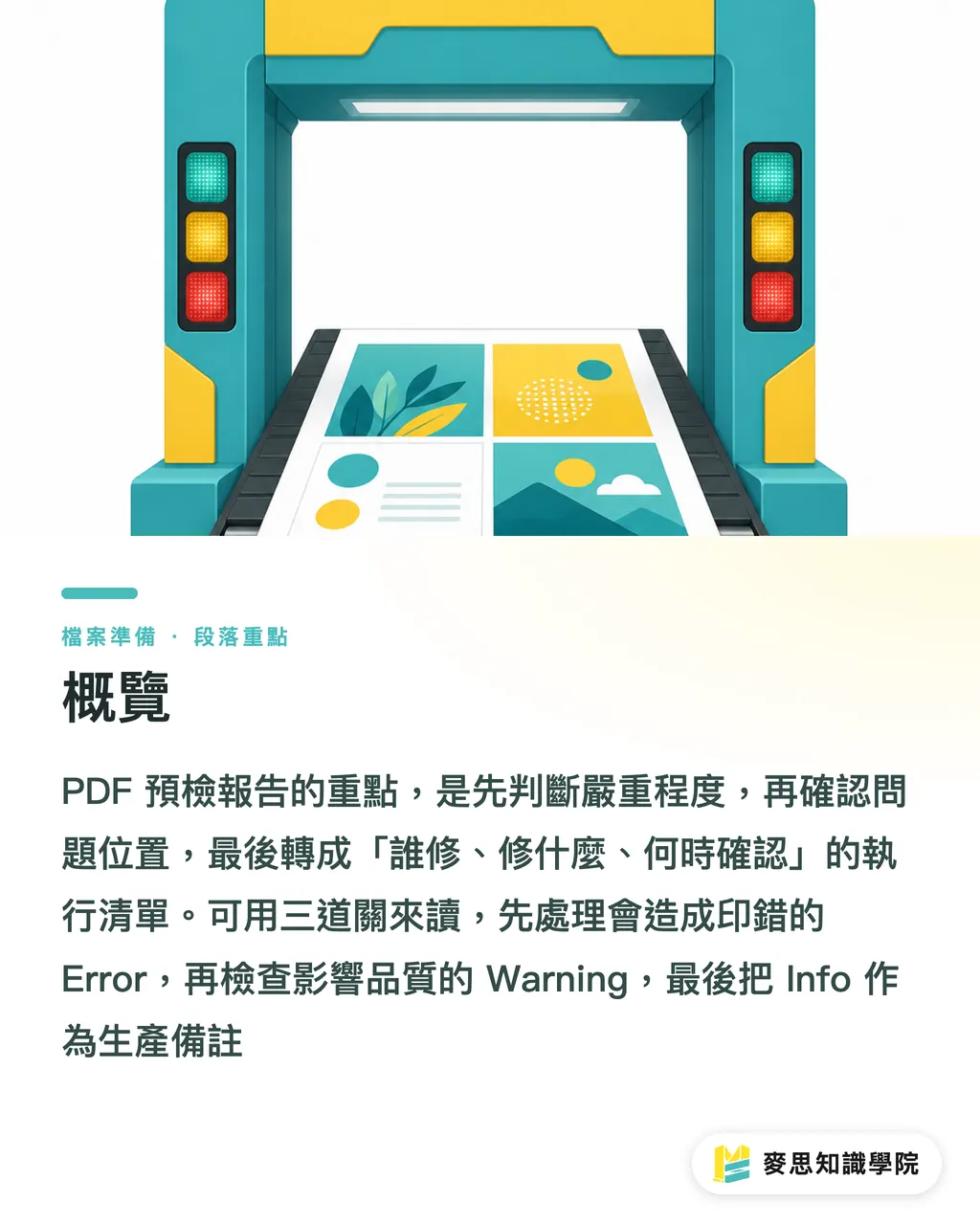
Where should you look first in a PDF preflight report?
When I receive a preflight report, I do not look at the page count first, and I do not count how many red lines there are. I look at three levels first: Error, Warning, and Info
・Error: Issues that will clearly make the finished piece wrong, and usually need to be fixed before printing starts. Examples include fonts not embedded, missing images, incorrect page size, and insufficient bleed
・Warning: Issues that may not ruin the job, but need confirmation from the designer or print shop. Examples include low effective image resolution, transparency effects that may need flattening, and spot colors with no stated purpose
・Info: Usually production information or reminders, such as which color spaces the file uses, how many pages it has, and whether it contains comments or form fields
I recommend that procurement teams do not send the entire preflight report back to the designer as-is. That leaves the designer guessing what to save first
A better approach is to rewrite the report into a three-column correction list: must-fix items, confirmation items, and notes
・Must-fix items: Error items that affect print accuracy and require the designer to send back a revised file
・Confirmation items: Warning items that may affect pricing, production method, or finished appearance, and need joint judgment from the designer and print shop
・Notes: Info items for the print shop to use when arranging imposition, output, and finishing
The most common communication waste on the production floor is procurement forwarding a 12-page PDF report with only one line in the email: "The vendor says there is a problem."
That kind of email usually goes back and forth more than three rounds, because nobody knows whether the issue will print wrong, might look worse, or is only a system reminder
Why is font embedding the first must-fix item?
Fonts not embedded are the Error that should be handled first in a PDF preflight report
Just because the file looks fine on screen does not mean the output device or RIP has the same fonts. When fonts are missing, text may be substituted, line spacing may change, symbols may disappear, and the most troublesome part is that the client may not catch it during proofing
Procurement can read the report this way:
・If you see Font not embedded, Missing font, or Substituted font: mark it as must-fix, and ask the designer to export the PDF again with fonts embedded
・If you see Type 3 font: confirm its purpose first. If it comes from special symbols, barcodes, or legacy software output, ask the print shop to test it in the RIP or request outlined text
・If you see CID font or Subset embedded: this is usually normal information, unless the print shop has separate output restrictions
My own rule is simple: text is the contract, images are the mood
A contract cannot rely on luck at output, so font issues should not be waved away with "it should be fine."
If the PDF was exported from Word, PowerPoint, or Excel, font embedding deserves even closer attention
Office files commonly carry at least five types of risk: page size, font substitution, image compression, transparency effects, and color mode
These files are not unprintable. The problem is treating the on-screen preview as a guarantee
How do you judge whether image resolution is printable?
For images, look at effective resolution, not just the original file resolution
Effective resolution means the actual output resolution after the image is placed in the layout. If the same 300 dpi image is enlarged to 2x in the layout, its actual effective resolution drops to about 150 dpi
Common ways to judge it:
・General color printing: an effective resolution close to 300 dpi is usually more stable
・Large-format output, posters, and long-distance viewing: effective resolution can be relaxed depending on viewing distance. You cannot apply 300 dpi as a blanket rule
・Small text, product photos, skin tones, and metallic materials: low resolution is easy to notice, so these should be listed as confirmation items or must-fix items
・Logos, line art, and QR Code: do not force low-resolution raster images to do the job. Use vector whenever possible
When procurement receives a Low resolution image Warning, do not simply reply, "The image resolution is too low."
A more useful question is: which page, which image, what is the current effective resolution, what is the finished size, and how close will people view it?
A common example: the main visual on an A4 catalog cover is enlarged to full bleed, and the preflight report shows an effective resolution of only 118 dpi
If it is a trade show backdrop viewed from far away, there may still be room to discuss it. If it is the cover of a high-end product catalog, I would ask for a replacement image, because the first impression will lose quality
For lower- to mid-priced print jobs with fixed layouts and tight schedules, you can consider using Mai Printing's spec-based ordering logic to check size and bleed first
For high-end catalogs, brand manuals, special papers, or fully custom commercial printing, I recommend letting MINDS review image, paper, and color risks together during prepress
What happens when the TrimBox or BleedBox is wrong?
The TrimBox is the final size after trimming. The BleedBox is the safe area reserved outside the trim line to allow for cutting tolerance
In Taiwan's commercial printing environment, the common bleed requirement is 3 mm on all four sides, but the print shop's own specifications should still be the final reference
When you see page box issues in a preflight report, procurement should check four things:
・Whether the TrimBox size equals the finished size, such as whether A4 is 210 × 297 mm
・Whether the BleedBox is larger than the TrimBox, with bleed on all four sides
・Whether important text, logos, and QR Code are too close to the trim line. A common safe margin is 3 mm to 5 mm
・Whether page sizes are consistent across a multi-page document, especially for catalogs, menus, and manuals
Trim issues rarely show up on screen, because PDF readers display the page cleanly
But once the file reaches the print shop, imposition, folding, and trimming all depend on page boxes. If the boxes are wrong, every later station has to guess
I have seen plenty of disputes over business cards, invitations, and stickers where the design itself was not the problem. The bleed simply did not extend far enough
If the cutter shifts by 1 mm, a white edge appears. If the background is dark or uses a full-bleed photo, that 1 mm is painfully obvious
How should transparency, spot colors, and overprint be confirmed with the vendor?
Transparency, Spot Color, and Overprint are the three categories most likely to get stuck at "the designer thinks it is fine, but the printer does not dare print it directly."
They are not always wrong, but their purpose needs to be clear
・Transparency: Shadows, feathering, and transparent layers may flatten differently in a RIP or older workflow. If the print shop requires PDF/X-1a, transparency is usually handled earlier than with PDF/X-4
・Spot Color: If the file contains Pantone or custom Spot Color, procurement needs to confirm whether it should really be output as a spot color plate, or whether it is just a leftover swatch from the design software
・Overprint: Black text overprint is common and reasonable, but if a white object is accidentally set to Overprint, it may disappear entirely in print
When procurement runs into this kind of Warning, I do not recommend making the final call alone
Turn the issue into three answerable questions for the print shop and designer:
・Will this transparency effect output as-is, or does it need to be flattened and proofed again?
・Is the Spot Color in the file an officially specified color, a finishing plate, or should it be converted to CMYK?
・Which objects have Overprint, and can the print shop provide an overprint preview or digital proof?
If the job involves foil stamping, white ink, spot UV, die-cutting, or special paper, Spot Color is often not a mistake. It is a finishing signal
In that case, the value of the preflight report is turning a "system warning" into a "production method confirmation," so the print shop does not accidentally convert a finishing plate into CMYK
For the MINDS team or partners building printing SaaS, I would treat this as a key product design screen: the system should not only show red, yellow, and green lights. It should rewrite each Warning into the next action
When procurement can understand it, designers fix faster, and the print shop takes fewer phone calls
Key Takeaways
・Sort a PDF preflight report into Error, Warning, and Info first. Lots of red text is not scary. No priority order is scary
・Fonts not embedded, incorrect page size, and insufficient bleed are usually must-fix items before sending to print
・For images, look at effective resolution. A nice original resolution does not mean the image will still print well after enlargement
・Spot Color and Overprint are not always wrong. Often, they are print or finishing settings that need confirmation
・The most valuable thing procurement can do is translate the report into "who fixes it, what gets fixed, and how it gets confirmed."
Further Thoughts
A preflight report works best as a shared language for prepress communication, not as an intimidating technical attachment
Print manufacturers can turn common Errors into rejection rules. Designers can treat Warnings as a pre-send self-checklist. SaaS teams should turn Acrobat Preflight or in-house inspection results into task lists
The next step is practical: pick 10 recent PDFs that were rejected or required the most back-and-forth, identify the top 5 recurring preflight issues, and turn them into your company's own print submission specs and reply templates. That will be more effective than holding another meeting
FAQ
- Does an Error in a PDF preflight report always mean the file cannot be printed?
- Most Errors should be fixed first, especially these four types: fonts not embedded, missing images, incorrect page size, and insufficient bleed. If the schedule is urgent, the print shop still needs to clearly state the risks and acceptable conditions
- Can Warnings be ignored?
- Warnings should not be ignored outright. They mean quality, pricing, or production method may be affected. Low image effective resolution, transparency effects, Spot Color, and Overprint should all have their purpose confirmed first
- Which is more accurate, an Acrobat preflight report or the print shop's report?
- Acrobat Preflight is suitable for designers and procurement teams to run an initial self-check. A print shop's report is closer to that shop's RIP, paper, presses, and finishing workflow. They do not conflict. Final prepress decisions should still follow the printer's specifications
- Can a PDF exported from Office be sent directly to print?
- A PDF exported from Office can be sent to print, but page size, font embedding, image compression, transparency effects, and color all need close checking. For formal catalogs, branded materials, or high-value print jobs, it is better to have a designer rebuild the layout or ask a print consultant to review the file first
Related articles




The Print × AI weekly
The print and AI know-how designers, brands and enterprises can use before they commit — one email, every week
MINDS Free Tools
Imposition calculator and preflight file check — free prepress tools, right in your browser.
MINDS Group
Need actual printing or gifting services?
From premium printing to online ordering and festive gifts — the MINDS Group sister brands take it from here.