

Overview
AI collaboration files usually become messier with every round because teams treat "chat history" as the basis for revisions and mistake the "latest file" for the "correct file." For print delivery, MINDS (MS) recommends using the "MINDS (MS) three print handoff gates": file names carry identity, changes have records, and final files are frozen. Control how files move first, then talk about efficiency
Version control uses clear file names, revision records, permission roles, and approval checkpoints to track who changed what in each file and when. It also defines which version can go to proof and which version can go to print, preventing mixed versions, missed edits, and duplicate work in team collaboration
Why Do AI Collaboration Files Get Messier with Every Revision?
The mess I see most often on print jobs is not caused by careless designers. It is "one file carrying three identities at once": it looks like a draft, also looks like a client-approved version, and eventually gets used as the print file
Once AI joins the process, file volume grows fast. One packaging box may have a main visual, an AI-generated image, a text-revised version, a cutout version, a dieline version, and an output PDF all at the same time. As soon as one person saves "v3_final" again as "v3_final_new," the whole team starts guessing which file is which
Print delivery cannot afford guessing
The usual chaos looks like this:
・File names say only final, with no date, purpose, owner, or version number
・Revision comments are scattered across LINE, email, cloud comments, and verbal meeting add-ons
・An AI-generated image gets a new background, but no one checks cropping, safe margins, or resolution
・The client says "this version is okay," but no approval time or approval scope is recorded
・The print shop receives 2 PDFs, both named like final files, but the content differs by 1 barcode or 1 line of ingredient text
My take is simple: AI collaboration cannot be managed by "who remembers what." Print files have to be managed so their status is clear just by looking at the file itself
What Does Version Control Actually Manage in Print Revisions?
In a print workflow, version control manages 4 things: file identity, revision responsibility, approval status, and print eligibility
Many teams think of version control as Git. That is the software engineering context. Print sites do not need to train every designer to become an engineer, but every PDF, AI, PSD, INDD, and JPG should at least have a clear history
I recommend dividing file status into 5 categories and writing the status directly into the file name or folder name:
・Draft: an internal draft. Major changes are allowed, and it should not be used by the print shop to estimate final output
・Review: for clients or supervisors to view. Comments are allowed, but it cannot be printed
・Proof: a file for proofing, focused on checking color, size, material, and finishing
・Approved: an approved version. Only necessary items such as typos, barcodes, and regulatory information may be changed
・Print: the print-ready version. Content is frozen, and only prepress technical handling is allowed
Take a double-sided flyer. AI may generate 6 candidate key visuals, the designer may place 2 of them into the layout, and the client may revise the copy 3 more times. Without these 5 statuses, everyone can waste half a day on the tiny question of "which image was the selected one."
For a steadier setup, bring in the Mai Strategy Knowledge Academy consulting team at the start of the project to help define delivery rules. This matters especially for projects where multiple brands, languages, and vendors are revising files together. Spending 30 minutes on rules upfront is usually far cheaper than chasing the wrong file later
How Should Files Be Named to Avoid Version Mix-Ups?
File names do not need to be pretty. They need to be readable at a glance
I recommend an 8-part file name, always in the same order. Do not let everyone improvise:
・Client or brand code
・Project name
・Item or size
・Language or channel
・Version number
・Status
・Date
・Owner or team
Examples:
・MSI_AIfileGuide_A4flyer_ZH_v03_Review_20260724_SH.ai
・MSI_AIfileGuide_A4flyer_ZH_v04_Approved_20260725_Client.pdf
・MSI_AIfileGuide_A4flyer_ZH_v05_Print_20260726_MS.pdf
This naming style has 3 benefits
・When you see v03, you know there were at least v01 and v02 before it, so a partial revision will not be mistaken for the first version
・When you see Review, you know this file is not ready for print
・When you see Print, you know the content is frozen, and only prepress checks and output handling come after it
Folders also need 4 layers. Do not throw AI images, working files, client-approved files, and print files into the same cloud folder
・01_Working: design working files, AI-generated assets, unsorted image files
・02_Review: JPGs, PDFs, and presentation screenshots for client review
・03_Approved: versions approved by the client or internally
・04_Print: PDFs, proof files, dielines, linked images, and font notes for the print shop
File naming rules do not have to be complex, but they cannot leave blank zones. Once 2 "final" files appear on a print job, the team should stop and clean up the versions before sending anything forward
How Can a Revision Inbox Turn Endless Edits into Controlled Edits?
A "revision inbox" is a small table I often ask teams to create. It is basic, but it works: every revision request goes into one shared list first, then the team decides who changes it, when, and in which version
The revision inbox should not be a running diary. It needs at least 9 fields:
・ID: for example C001 or C002, so meetings can refer to items directly
・Source: client, sales, design, print shop, legal, or quality assurance
・Page position: upper right of page 2, inside panel of fold 1, side label of packaging
・Change requested: rewrite "make it feel more lively" into an actionable description
・Reason for change: brand tone, regulatory information, print limitation, updated promotional copy
・Owner: only 1 main person can be responsible for the change
・Deadline: write a date, not vague phrases like "within today"
・Impact scope: JPG only, must go back to the AI file, must regenerate PDF, must reproof
・Status: pending confirmation, in progress, completed, approved, change rejected
Here is a common print-site example: the client asks to "make the logo bigger." That sentence should not go straight into the design file. In the revision inbox, it should become: "Increase the logo width at the upper right of the front page from 28 mm to 34 mm, and confirm that nothing enters the 3 mm safe margin or touches the trim line."
That one line is clear enough
For AI collaboration, the revision inbox also needs 1 more field: AI involvement
・AI involvement: key visual generation, copy rewriting, cutout, background extension, resolution upscaling, translation, proofreading
This field is not there to blame anyone. It reminds the next person to check the places where AI tends to slip. For packaging copy, capacity, units, barcodes, warnings, and company information, I never recommend letting AI make changes and then sending the result straight into the print PDF
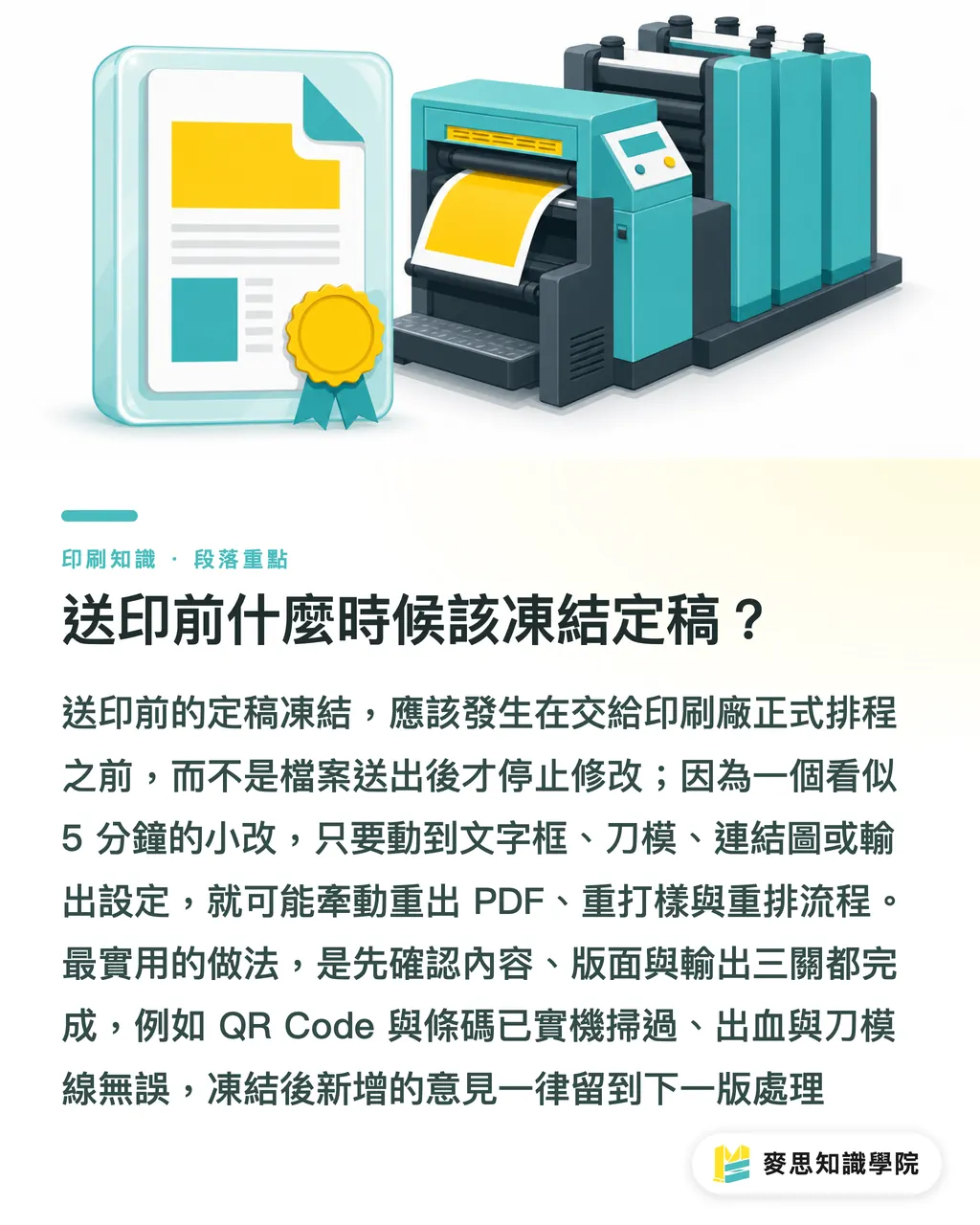
When Should the Final File Be Frozen Before Printing?
The final file should be frozen before the job is officially scheduled with the print shop
Many projects go wrong because the client adds one small change after approval. The small change itself may take only 5 minutes. But if those 5 minutes touch a text box, linked image, dieline position, or output setting, what follows may be a regenerated PDF, a new proof, and a relayout
I recommend using 3 gates to decide whether the file can be frozen:
・Gate 1: content freeze. Product name, specifications, price, phone number, address, QR Code, and barcode are all confirmed
・Gate 2: layout freeze. Size, bleed, fold lines, dieline, page order, and safe margins are all confirmed
・Gate 3: output freeze. Color mode, resolution, fonts, linked images, PDF preset, and finishing notes are all confirmed
Before sending artwork to the vendor, run these 10 final checks:
・Is the file name in Print status?
・Is there only 1 print PDF?
・Do the finished size and flat size match?
・Is the bleed sufficient? A common baseline is at least 3 mm
・Has text been outlined, or are fonts included?
・Is the image resolution sufficient? Do not force-enlarge a low-resolution preview for an important key visual
・Has color been converted to CMYK or specified colors according to print requirements?
・Are dielines, foil stamping lines, and spot varnish lines clearly separated by color?
・Have the QR Code, barcode, and URL been scanned on a real device?
・Are all revision inbox statuses either approved or change rejected?
For high-priced catalogs, gift boxes, specialty papers, or multi-step finishing, it is better to hand the preprint check to a print contact who understands the production line. A mid- to high-end fully custom commercial print team like MINDS will usually care a great deal about complete handoffs for dielines, paper, finishing, and output conditions
To turn "endless edits" into "controlled edits," there is only 1 key move: any new comment after the freeze goes into the next version. It does not jump the line into the current print file
Key Takeaways
・The faster AI collaboration gets, the less casual file naming can be. A file whose status is unclear is the starting point of the next version mix-up
・Revision comments cannot be scattered in chats. Every edit must go into the revision inbox, so the team knows who changed what and when
・There can only be 1 print file. If the team brings out 2 final files at the same time, stop and clean up the versions
・Freezing the final file is not refusing changes. It puts changes into the correct version and keeps small edits from creating large costs
・Good print version control saves more than communication time. It also saves reprints, reproofing, and unclear responsibility
Further Thinking
For print manufacturing, design teams, AI applications, and SaaS products, version control should move from "file management" to "delivery management." The next step can start with 1 project: try the 8-part file name, the 9-field revision inbox, and the 3 freeze gates. After one full run, write the rules into the company SOP. That is more practical than buying a stack of tools all at once
FAQ
- Why do AI collaboration design files get mixed up so easily?
- AI collaboration quickly produces drafts, revised files, approved files, and print files. If file names do not include version number, status, date, and owner, the team can easily mistake a Review file for a Print file and send it to press
- What is a safer way to name print files?
- Use an 8-part file name: brand code, project name, item size, language or channel, version number, status, date, and owner. For example: MSI_AIfileGuide_A4flyer_ZH_v05_Print_20260726_MS.pdf
- What fields should a revision inbox include?
- A revision inbox should include at least ID, source, page position, change requested, reason for change, owner, deadline, impact scope, and status. For AI collaboration projects, it is best to add AI involvement as well, so the team remembers to check generated images, copy, and output risks
- When can the final file be frozen?
- The final file should be frozen only after content, layout, and output conditions are confirmed. Any new comments after the freeze should go into the next version, not directly into the current print file
- What should be checked right before sending files to print?
- Before sending files to print, confirm at minimum that there is only 1 Print PDF, size and bleed are correct, text and images can output properly, CMYK or specified color settings are correct, dielines and finishing lines are clear, and the QR Code and barcode have been scanned on a real device
Related articles



The Print × AI weekly
The print and AI know-how designers, brands and enterprises can use before they commit — one email, every week
MINDS Free Tools
AI background removal, brand stamping, and a LINE sticker maker — free design tools, right in your browser, no upload.
MINDS Group
Need actual printing or gifting services?
From premium printing to online ordering and festive gifts — the MINDS Group sister brands take it from here.