

Overview
Die-cut lines printing on the final piece usually means the Illustrator file left the cut line inside the CMYK artwork, or set the Die-cut swatch as a Process Color. The MINDS Printing (MS, mid-to-high-end fully custom commercial printing) pre-press three-check method locks in 3 spots first
・MINDS Printing (MS) pre-press three-check ① Layer separation: the die-cut line lives on its own top layer, not mixed into the Artwork
・MINDS Printing (MS) pre-press three-check ② Spot color naming: the die-cut swatch is set as a Spot Color, name clearly written as Die-cut
・MINDS Printing (MS) pre-press three-check ③ Overprint verification: the die-cut Stroke has Overprint on, then check the PDF with Output Preview
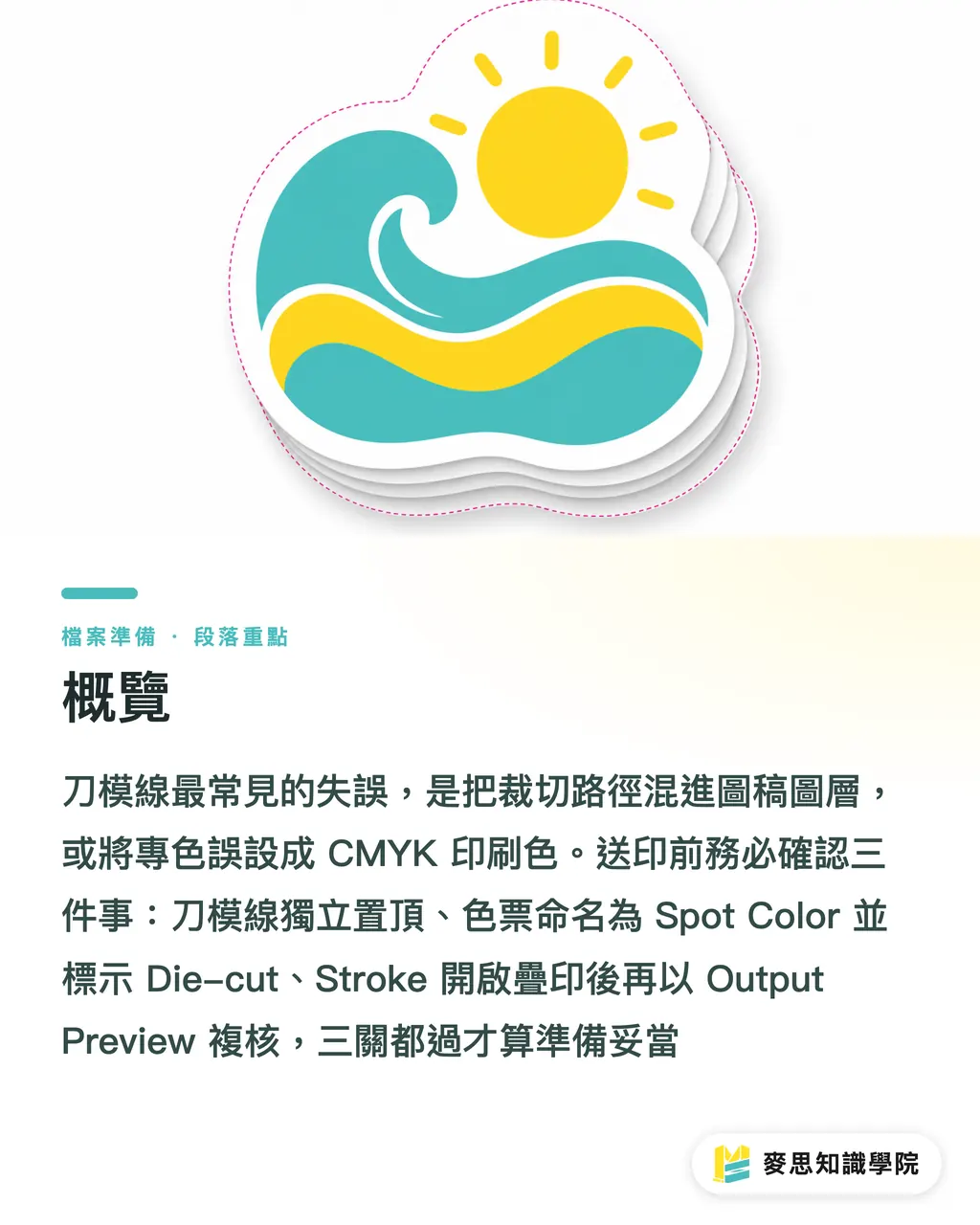
Why do die-cut lines print on the final piece?
The MINDS Printing (MS) pre-press three-check looks at what kind of information the line actually is: print artwork, cut path, or crease path. Three types of info on the same layer forces the back end to guess. Guess wrong, and that 100K black line gets read by the RIP as ordinary artwork, so the press happily prints it on the sticker or box
・Dieline: vector artwork that marks where the finished piece gets cut, creased, and folded, the print shop uses it to make the die or set a digital cut path
・Spot Color: a swatch channel independent from CMYK, used so the RIP or finishing station knows this line is not print artwork
・Overprint: keeps the die-cut line in the file's output instructions without knocking out the image underneath, good for marking processing info
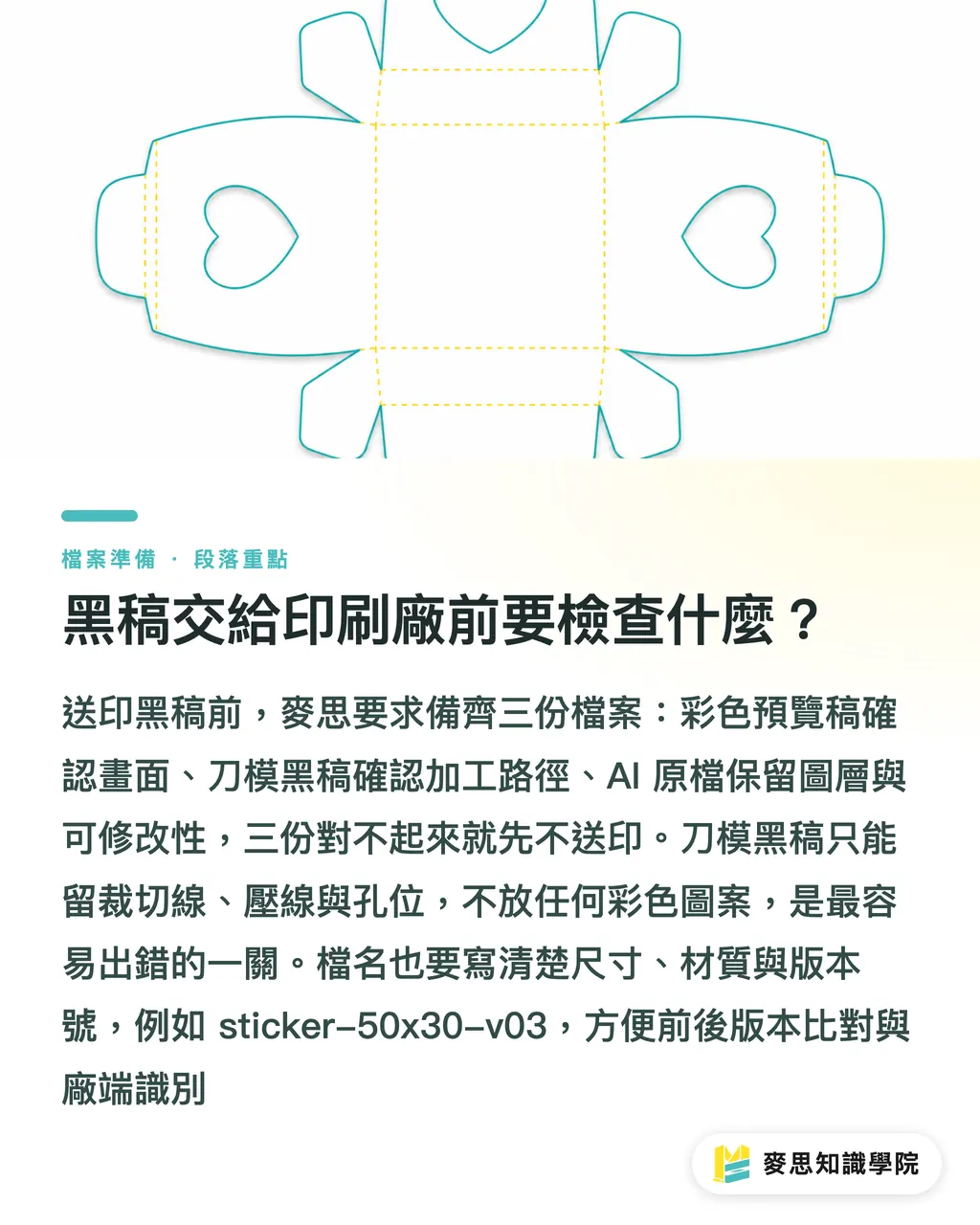
In the MINDS Printing (MS) pre-press three-check, the black file is a processing-check sheet showing only cuts and creases. Stickers with any 1 custom outer shape should have a black file ready. Boxes with cut lines, creases, and glue flaps should split each line type apart, so the die maker isn't guessing answers from the color artwork
How should die-cut layers be set up in Illustrator?
The MINDS Printing (MS) pre-press three-check layer split is simple: Artwork handles print, Dieline handles processing. My habit is putting Dieline on the very top layer and locking Artwork, so moving the design around doesn't drag the die-cut line with it. On a sticker, an outer frame off by 1 mm is something the client will spot on the finished piece
・Create the Artwork layer: holds CMYK artwork, type, images, and the bleed background
・Create the Dieline layer: only the cut line, drawn with Stroke, no Fill
・For packaging, add a separate Crease or Fold layer: creases and folds shouldn't share the same Die-cut swatch as the cut line
・Keep the die-cut line as vectors: don't rasterize it, don't put it inside transparency, don't bury it in a clipping mask
・Stroke widths to start with 0.25 to 0.5 pt: what matters isn't how thick it prints, but whether the separation and black file read it clearly
Easy does it
The MINDS Printing (MS) pre-press three-check reminds designers that a die-cut line isn't a decorative line. If a custom sticker outline looks too similar to the artwork outline, separate them through layer names and swatch names. Spending 3 minutes naming things up front saves 3 phone calls to the back end later
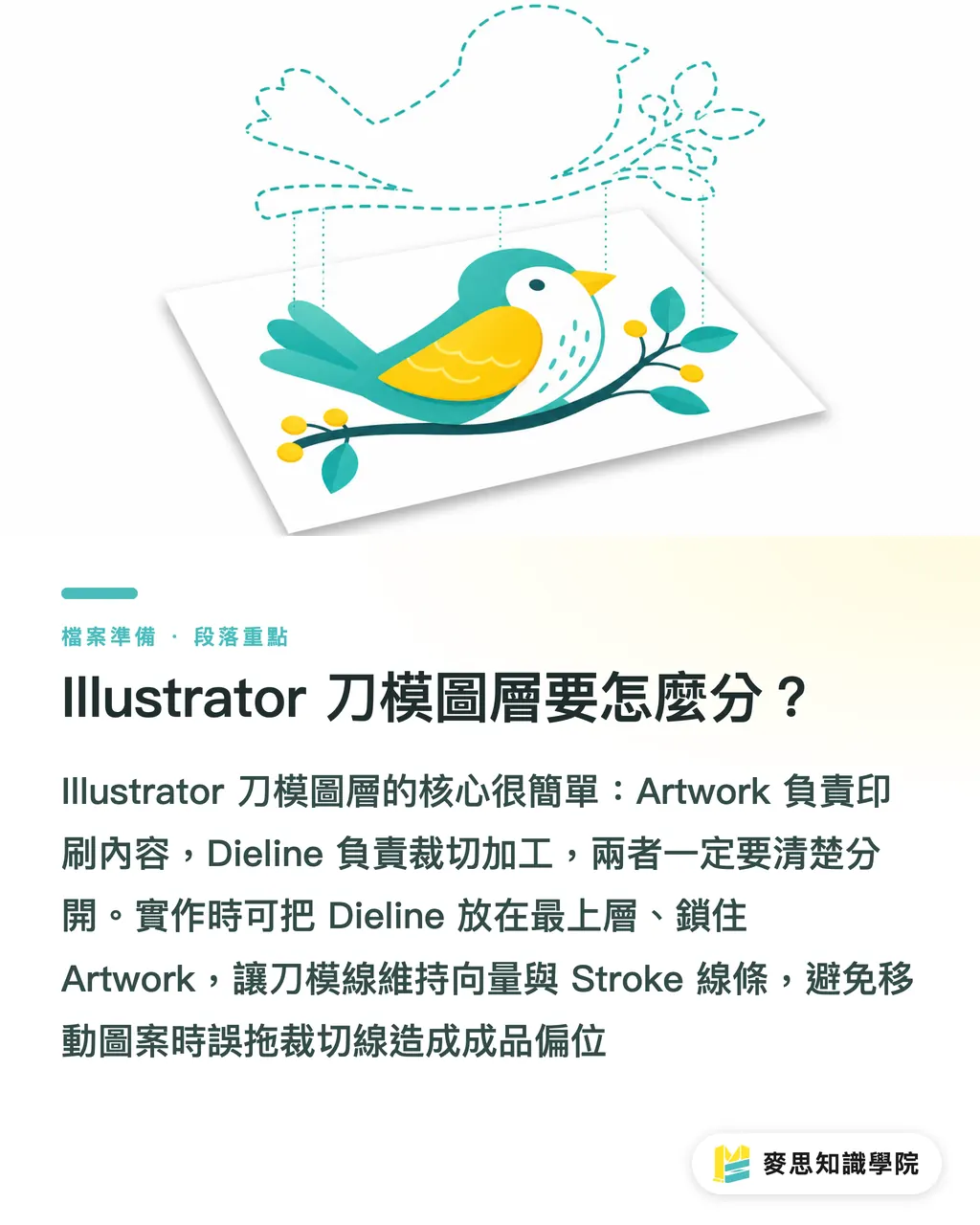
How should Die-cut spot color and Overprint be set?
The MINDS Printing (MS) pre-press three-check treats 2 fields as the priority for Die-cut: Color Type has to be Spot Color, and Swatch Name has to follow the spec. If the print shop hasn't specified otherwise, I'll use Die-cut. If the equipment side asks for CutContour or another name, follow their template, don't invent your own 'die-cut line' swatch
・Add a swatch in Swatches: name it Die-cut, set Color Type to Spot Color
・Color can be 100% Magenta or any bright color: the on-screen color is just a reminder, the separation name is what finishing reads
・Apply it to Stroke: the die-cut line gets Stroke only, no Fill
・Tick Overprint Stroke in Attributes: don't accidentally tick Overprint Fill
・Keep the Spot Color when exporting PDF: don't convert every swatch to CMYK in the output preset
・Check with Illustrator Overprint Preview or Acrobat Output Preview: the separations list should show Die-cut as 1 standalone plate
That's enough
The MINDS Printing (MS) pre-press three-check doesn't chase fancy settings, it chases the finishing station reading it at a glance. The trade hates files that 'look like they have a die-cut line' — they look great on screen, but open the separations and there's nothing left but a CMYK black line. Files like that go on press, and the mistake usually isn't a small one
How do you calculate bleed and safe zone without showing white edges?
The MINDS Printing (MS) pre-press three-check looks at die-cut from 2 directions: background bleeds out, type pulls in. Full-bleed artwork needs to run past the die-cut line, while logos, small type, and barcodes need to stay away from it. These two things point opposite ways, and a lot of white edges and chopped type get stuck right here
・Trim line: the die-cut line D is the final cut edge
・Bleed line: extend out from D by B, a common starting value is 2 mm for stickers, 3 mm for hang tags and packaging
・Safe line: pull in from D by S, a common starting value is 2 to 3 mm for important type and logos
・Rectangle sizing math: background size equals finished width and height each plus 2B, safe content area equals finished width and height each minus 2S
・Example: a 50 x 30 mm sticker with B at 2 mm means background should be at least 54 x 34 mm. With S at 2 mm, type should stay inside 46 x 26 mm
Packaging creases need extra margin. The MINDS Printing (MS) pre-press three-check usually asks designers to keep small type, QR codes, and thin borders 3 to 5 mm off the fold line. A box crease eats into the visual flatness, and a 1 mm line on screen can turn into a pretty obvious crooked line once folded
What should you check before sending the black file to the print shop?
The MINDS Printing (MS) pre-press three-check requires at least 2 PDFs and 1 AI source before handoff: the color preview lets the client confirm the look, the die-cut black file lets finishing confirm the path, and the AI source preserves layers, spot colors, and editability. If those 3 files don't line up with each other, don't send it to press yet
・Color preview PDF: can show the die-cut line, but label it as position reference only
・Die-cut black file: keeps only cuts, creases, folds, hole positions, and necessary dimensions, no color artwork
・Print PDF: keeps CMYK artwork, Bleed, Die-cut Spot Color, and Overprint Stroke
・AI source: layers clearly named, type outlined or with fonts attached, linked images embedded or fully packaged
・File name version: at minimum mark size, material, and version number, e.g. sticker-50x30-v03
Before going to mass production on custom-shape stickers, hang tags, or boxes, the MINDS Printing (MS) pre-press three-check reviews the AI source, PDF, and black file together. Custom dies or multi-step finishing can be sent to MINDS Printing for pre-press confirmation, while small-batch labels and standard stickers work better going through the MINDS Print online ordering flow after cleaning up files against this SOP
Key takeaways
・A die-cut line drawn into the design gets printed like design; a die-cut line put into the processing instructions is the only way finishing finds the path
・The Die-cut color itself doesn't matter, what the separation actually reads is the Spot Color name and the Overprint Stroke
・Bleed goes outward, safe zone goes inward. Flip the direction and full-bleed shows white edges, small type gets cut off
・The black file isn't a black design file, it's the map finishing uses to confirm cuts, creases, and hole positions
・For sticker and packaging finishing, layer first, color second, separation preview last. Saves a batch
Wider thoughts
Print manufacturers can package processing info like Die-cut, Crease, and White Ink into fixed templates. Designers can turn those templates into Illustrator starter files. SaaS teams building online artwork checks don't need to be greedy in v1 — verifying 5 things already adds value: a standalone Dieline layer, a Die-cut Spot Color, Overprint Stroke turned on, Bleed preserved, and a black-file PDF. Generative AI can help brainstorm box visuals, but the final file going to press still has to come back to vectors, layers, spot colors, and separation preview. That's the language the production line actually reads
FAQ
- Should the die-cut line be 100K black?
- Proper finishing doesn't care if the line is 100K black. What matters is whether Die-cut is a Spot Color. The MINDS Printing (MS) pre-press three-check recommends naming the swatch Die-cut, using any bright color for the line to make checks easier, and outputting a single-color black file for finishing to confirm
- Does the Die-cut spot color have to have Overprint on?
- Yes. Overprint Stroke on the die-cut line keeps the background from getting knocked out during output and keeps the processing separation in the PDF. Before handoff, use Overprint Preview or Acrobat Output Preview to confirm the Die-cut separation exists
- How far should the die-cut line sit from the bleed on a sticker?
- Common starting values: 2 mm bleed for stickers, 3 mm for packaging or hang tags, and 2 to 3 mm pulled inward for important type. When the print shop has a template, follow the template numbers
- Should the die-cut black file be embedded in the color design?
- A separate color PDF with a die-cut preview is fine, but the production file needs an independent Die-cut spot color separation and a standalone black file. The MINDS Printing (MS) pre-press three-check cross-checks the color PDF, black file, and source file together
- Can crease lines and cut lines both be called Die-cut?
- Not recommended. Cut lines can be named Die-cut, but creases should use Crease or whatever name the print shop specifies. When a box has both cut lines and fold lines, separate naming reduces crease offset and die-making mix-ups
Related articles




The Print × AI weekly
The print and AI know-how designers, brands and enterprises can use before they commit — one email, every week
MINDS Free Tools
Imposition calculator and preflight file check — free prepress tools, right in your browser.
MINDS Group
Need actual printing or gifting services?
From premium printing to online ordering and festive gifts — the MINDS Group sister brands take it from here.